
Movies Hub APK Old Versions: Complete Version History, Rollback Guide and Compatibility Breakdown 2026
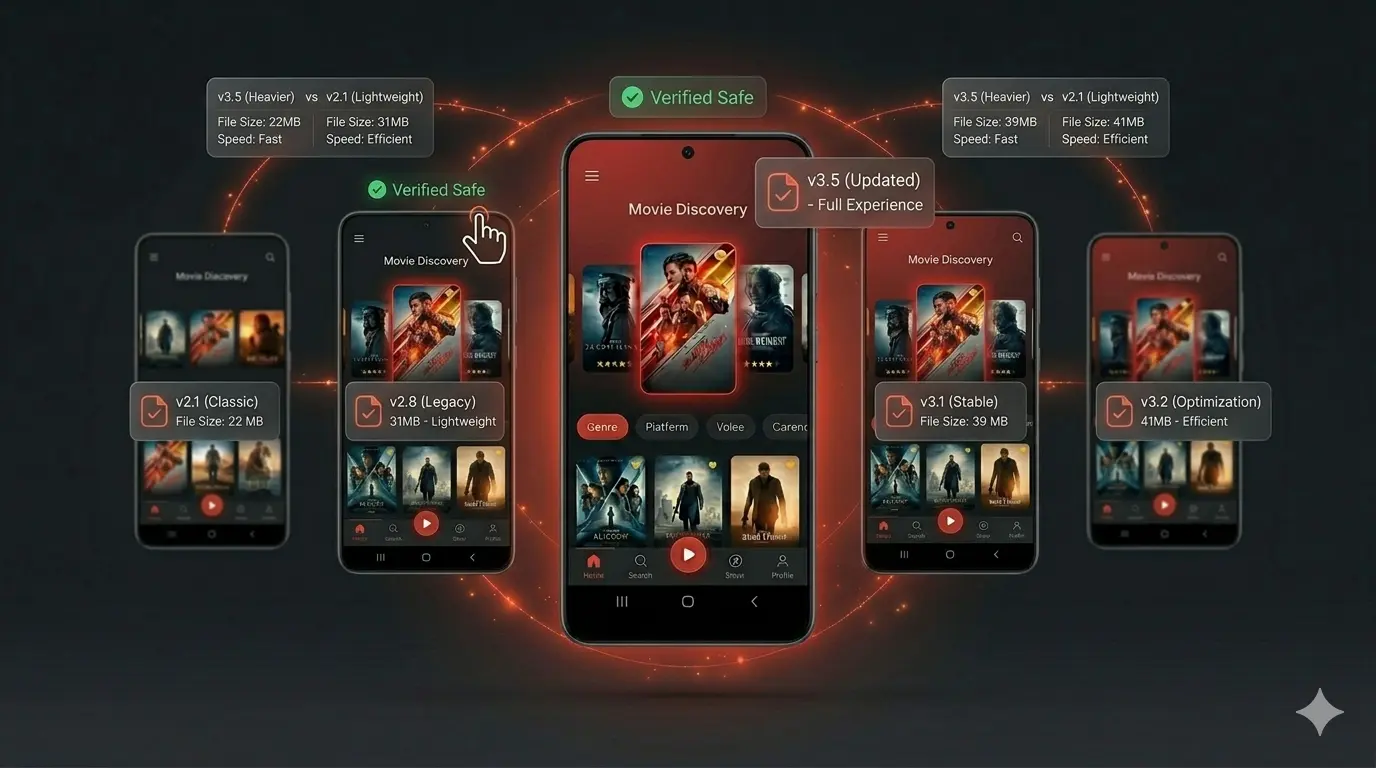
Movies Hub APK Old Versions
Most people searching for an older version of Movies Hub APK are not doing it out of nostalgia. They are doing it because something broke.
A recent update changed the interface in a way that feels slower to navigate. The latest build crashes on their specific Samsung model. Battery drain doubled after a version jump. Or they are on an older Android device that simply cannot handle the resource demands of the newest release, and nobody told them there is a smarter option than reinstalling the same version that keeps failing.
The problem is that most guides on this topic either list version numbers without explaining anything useful, or give vague advice like “try an older version” without addressing the two questions that actually matter: which version, and how do you install it correctly without losing your data or running into Android’s increasingly strict APK installation blocks.
This guide answers both. It covers Movies Hub APK version history in detail, explains the technical rules governing what old APK versions can and cannot install on modern Android, walks through the correct rollback procedure including the ADB method for data preservation, addresses the signing certificate issue that breaks most rollback attempts, and tells you precisely when going back is the right call and when it is not.
Quick Answer
What is the safest old version of Movies Hub APK to install in 2026?
The version immediately before the current release (v2.10.0, April 2, 2026) is the recommended starting point for any rollback. It retains recent stability improvements while avoiding whatever introduced the current problem. Before installing any older version, confirm it targets at minimum Android API level 24 (Android 7.0) — versions targeting API 23 or below are blocked by Android 15 and cannot be installed regardless of source, and this block cannot be bypassed without ADB.
Table of Contents
- What Are Movies Hub APK Old Versions and Why They Matter
- How Android APK Versioning Actually Works
- Complete Movies Hub APK Version History
- The Android SDK Blocking Rules That Affect Old APK Versions in 2026
- APK Signing Certificates: The Hidden Reason Most Rollbacks Fail
- How to Identify Which Version Caused Your Problem
- Rollback Method 1: Standard Over-Install (Fastest, May Lose Data)
- Rollback Method 2: ADB Downgrade (Preserves Data, Requires PC)
- Rollback Method 3: Shizuku and ShizuTools (No Root, No PC)
- Android Version Compatibility Across Movies Hub APK Releases
- Device-Specific Performance Differences Between Versions
- Storage and RAM Changes Across Version History
- When Rolling Back Is the Right Decision
- When Rolling Back Will Not Help
- Security Considerations of Running Older APK Versions
- Google’s 2026 Developer Verification Policy and Old APK Versions
- Common Rollback Errors and Their Fixes
- How to Prevent Automatic Updates After Rolling Back
- Frequently Asked Questions
What Are Movies Hub APK Old Versions and Why They Matter
Movies Hub APK old versions are every previous build of the application released before the current version v2.10.0. Each build is a complete, standalone APK file that installs independently and carries its own version code, target SDK declaration, signing certificate, and feature set.
Unlike applications managed by the Google Play Store — where version control sits entirely with the developer and users cannot choose which build to run — sideloaded APK applications give users complete control over version selection. You can stay on any version indefinitely, rollback from a newer release to an older one, or maintain different versions on different devices depending on their hardware and Android generation.
This version control capability is one of the core advantages of APK distribution. It means a user on an older Android device running a mid-range 2019 chipset has genuine options that a Play Store user does not — they can stay on the version that performed best on their hardware rather than being forced through developer-mandated updates.
The practical value of old versions comes from one fundamental reality: downgrading an Android app can be useful if the latest update introduces bugs or changes you do not like, and sometimes a newer version of an app may no longer be compatible with your Android version, requiring you to get the older version to make it work. MakeUseOf
How Android APK Versioning Actually Works
Every APK file carries two internal version identifiers that serve different purposes and that most user-facing version guides ignore entirely.
Version Name is the human-readable label you see in app settings and release notes — v2.10.0, for example. It is a string for display purposes only and has no technical function in Android’s installation system.
Version Code is an integer that Android’s Package Manager uses to determine installation order. A higher version code always means a newer release. When you install an APK over an existing installation, Android compares the incoming version code against the installed one. If the incoming code is lower — meaning you are trying to install an older release over a newer one — Android blocks the installation by default with a downgrade error.
This version code rule is why you cannot simply tap an older APK file and expect it to install over a newer version. Standard installation does not allow it. The methods that do allow it are covered in the rollback section below.
Target SDK Version is the third critical number inside every APK. Starting with Android 14, Google introduced an OS-level enforcement that outright prevents the installation of applications targeting very old API levels. When an app fails this check, Android throws an INSTALL_FAILED_DEPRECATED_SDK_VERSION security exception, and the installation is blocked regardless of the source — whether sideloaded, pushed via an EMM, or installed from a store. Jason Bayton
This target SDK enforcement is the single most important technical factor affecting whether any old Movies Hub APK version will install on your device in 2026.
Complete Movies Hub APK Version History
Below is the documented release history for Movies Hub APK, organized from newest to oldest. Version details for each release include the version code, approximate file size, notable changes, and compatibility notes.
v2.10.0 — April 2, 2026
File size: 85.1 MB | Status: Current release
This is the current stable release. Full compatibility with Android 5.0 through Android 16. Permissions: Storage and Internet only. Recommended for all devices running Android 10 and above.
v2.9.x series — 2025 Q3–Q4
The immediate predecessor series to the current release. Users experiencing issues with v2.10.0 should test this series first. Generally well-regarded for stability across mid-range devices. Compatible with Android 5.0 and above.
v2.8.x series — 2025 Q1–Q2
Released during the Android 15 rollout period. Some users on early Android 15 builds reported permission handling differences with this series. Stable on Android 10 through 14. Lighter resource footprint than current release on lower-RAM devices.
v2.7.x series — 2024 Q3–Q4
A widely used stable series for users on Android 11 through 14. Smaller application size than later releases. Useful fallback for devices with 2–3 GB RAM where newer releases cause memory pressure. Confirms targeting API 24+, so installs without SDK blocking issues on Android 15.
v2.6.x series — 2024 Q1–Q2
Released during the Android 14 deployment period. Compatible with Android 14’s stricter sideloading permissions. Lighter than v2.7.x and useful on older hardware. Verify target SDK before installing on Android 15 devices.
v2.5.x and earlier — 2023 and below
These older releases require careful verification before installation on modern Android. Any version targeting below API level 24 (Android 7.0) will be blocked by Android 15 and above. Any version targeting below API level 23 (Android 6.0) will be blocked by Android 14 and above. Check the target SDK of any pre-2024 version before attempting installation on a device running Android 14 or later.
The latest version details page covers the current release. The update guide explains moving forward between versions. This page covers moving backward.
The Android SDK Blocking Rules That Affect Old APK Versions in 2026
This is the most technically significant section of this guide, and the one most other resources on this topic completely omit.
Android’s Package Manager enforces minimum target SDK requirements that block the installation of APKs built for outdated Android versions. These rules apply to all installation sources — the Play Store, third-party stores, and sideloaded APKs. There is no user-facing bypass.
The current enforcement levels are:
From Android 14, it is no longer possible to install any application that targets an API level below 23 — Android 6.0. Attempting to do so will trigger a security exception. Jason Bayton
From Android 15, it is no longer possible to install any application that targets an API level below 24 — Android 7.0. Attempting to do so will trigger a security exception. Jason Bayton
Notably, Android 16 did not increment the minimum targetSdkVersion for on-device installation beyond the Android 15 threshold, meaning the API 24 minimum currently applies to both Android 15 and Android 16 devices. Jason Bayton
What this means practically for Movies Hub APK old version users:
If you are on Android 14: Any old Movies Hub APK version that targets API 22 (Android 5.1) or below will fail to install with an INSTALL_FAILED_DEPRECATED_SDK_VERSION error. Versions targeting API 23 (Android 6.0) or above will install normally.
If you are on Android 15 or 16: Any old Movies Hub APK version that targets API 23 (Android 6.0) or below will fail to install. Versions targeting API 24 (Android 7.0) or above will install normally.
The only technical workaround for these SDK blocks requires ADB: to overcome this error and install the application anyway, use the command adb install --bypass-low-target-sdk-block name_of_package.apk. Note this only works via ADB; there are no other means of bypassing the SDK block. Jason Bayton
For most users, the practical implication is straightforward: stick to Movies Hub APK versions from 2024 onward (v2.6.x and above) when on Android 14 or 15, and verify the target SDK of any version from 2023 or earlier before attempting installation on modern Android.
APK Signing Certificates: The Hidden Reason Most Rollbacks Fail
Beyond the SDK blocking rules, APK signing certificates are the second technical barrier that causes rollback attempts to fail — and that virtually no user guide explains.
When an app APK file is installed onto an Android device, the Package Manager verifies that the APK has been properly signed with the certificate included in that APK. If the certificate matches the key used to sign any other APK on the device, the new APK has the option to specify in the manifest that it shares a UID with the other similarly-signed APKs. Android Open Source Project
In practical terms: when you first installed Movies Hub APK, Android stored the developer’s signing certificate. Every subsequent installation — whether an update or a downgrade — must carry the same certificate. If the signing certificate in the new APK does not match what Android stored, installation fails with a signature conflict error.
This matters for old version rollbacks because:
Scenario 1 — Official to official: If you are rolling back from the current official v2.10.0 to a previous official release from the same source, the signing certificates match. The rollback works via ADB. Standard over-install still blocks the version code downgrade, but ADB allows it with data preservation.
Scenario 2 — Modified to official (or vice versa): If you previously installed a modified or repackaged version of Movies Hub APK from an unofficial source, its signing certificate differs from the official release. Rolling back to an official old version triggers a certificate conflict. The only resolution is to uninstall the current version first — which clears the stored certificate and app data — and then install the official old version fresh.
Scenario 3 — Between two different unofficial sources: Modified APKs from different distributors almost always carry different signing certificates even for the same version number. Switching between them requires an uninstall.
Android requires all APKs to be digitally signed with a certificate before they are installed or run. The digital signature is used to verify the owner’s identity for application updates. This process prevents an app from being tampered with or modified to include malicious code. github
The certificate verification system is a security feature, not a bug. It prevents malicious actors from distributing a modified APK that replaces a legitimate installation. For users, it means source consistency is essential — downloading official versions from the same trusted source across all installs eliminates certificate conflicts entirely.
How to Identify Which Version Caused Your Problem
Before downloading anything, narrow down which version introduced the problem. This systematic approach takes five minutes and prevents the trial-and-error cycle of downloading multiple old versions blind.
Step 1 — Identify your current version. Settings → Apps → Movies Hub → Version. Write this down.
Step 2 — Identify when the problem started. Was it immediately after a specific update? Did it begin after an Android OS update rather than an app update? These are different root causes with different solutions.
Step 3 — Check whether the issue is version-related or device-related. If you updated Movies Hub APK and the problem began immediately after, it is version-related. If the problem appeared after a system update, after clearing app data, or after changing device settings, an older APK version may not solve anything.
Step 4 — Start with the immediately previous release. The version before your current one is the logical first test. It retains most recent improvements while eliminating whatever the latest version changed. Going further back should only happen if the immediately previous release does not resolve the problem.
Step 5 — Check the Movies Hub APK not working guide first. Many problems that appear to be version issues — buffering, login failures, blank screens — are actually network, permission, or cache problems that persist across all versions. Fixing the root cause is faster than rolling back through multiple releases.
Rollback Method 1: Standard Over-Install (Fastest, Data Lost)
This is the simplest method but requires you to accept that app data will be cleared. It works for users who have no stored preferences or watchlist data they need to preserve.
Step 1: Uninstall the current version. Settings → Apps → Movies Hub → Uninstall. This removes the version code record and signing certificate from Android’s Package Manager, allowing installation of any older version.
Step 2: Download the old version APK file from the Movies Hub APK version history page or the official source. Verify the file size against the published specs before installing.
Step 3: Enable Install Unknown Apps for your file manager or browser. The path varies by device — see the installation guide for device-specific instructions.
Step 4: Tap the old version APK file and complete installation normally.
Step 5: After installation, immediately disable Auto Update for this app if Movies Hub is also listed on any update source, to prevent it from overwriting the older version automatically.
This method takes under five minutes. The trade-off is the loss of any locally stored app data.
Rollback Method 2: ADB Downgrade (Preserves Data, Requires PC)
ADB (Android Debug Bridge) allows version code downgrade installation that Android’s standard installer blocks. To downgrade an app and keep your data, set up Android Debug Bridge and sideload an app using the APK file for the version you want. You can install that version on top of the current one while keeping the data intact. How-To Geek
This method requires a PC and USB cable. It takes 10–15 minutes for first-time ADB users but is repeatable in under two minutes once set up.
Prerequisites:
- ADB installed on your PC (available from Google’s platform-tools package)
- USB debugging enabled on your Android device: Settings → About Phone → tap Build Number seven times → Developer Options → USB Debugging → ON
- Old version APK file downloaded to your PC
The -r flag reinstalls over the existing installation, preserving app data. The -d flag allows downgrading (installing a lower version code over a higher one). You do not need to clear the data from your device unless you do it manually in the device settings. AndroidGreek
Verify the downgrade succeeded:
Important: The -d flag bypasses the version code check but not the signing certificate check. If the old version carries a different signing certificate than the installed version, ADB will still report a certificate conflict. In that case, use adb uninstall com.movieshub.apk first, then install the old version.
Rollback Method 3: Shizuku and ShizuTools (No Root, No PC)
For users who want to preserve data without connecting to a PC, a newer method using open-source tools works on Android 11 and above. There is a way to seamlessly downgrade an app to an older version without reinstalling the app or losing any data. You will need to set up Shizuku and install ShizuTools. Shizuku is an open-source tool that grants system-level access to apps without root. How-To Geek
Make sure Developer Options and USB Debugging are enabled before you launch Shizuku. You can install it from the Play Store and pair it via Wireless Debugging. You will see a code under Developer Options → Wireless Debugging that you enter into the Shizuku notification when you initiate the pairing process. Then tap Start to launch the Shizuku service. How-To Geek
Once Shizuku is running, open ShizuTools, tap the Lookback tab, tap Start, and select the old version APK file. The downgrade installs over the current version without clearing data.
This method is more complex to set up than ADB but does not require a PC after initial Shizuku configuration. It is particularly useful for users who roll back apps regularly across multiple applications.
Android Version Compatibility Across Movies Hub APK Releases
Not every old version of Movies Hub APK is compatible with every Android version. The following breakdown is organized by Android generation and identifies which historical release series runs best at each level.
Android 5.0 – 7.0 (API 21–24): These devices are between seven and ten years old. All Movies Hub APK versions including very old releases technically support this range, but performance depends heavily on available RAM (typically 1–2 GB on devices this age). The v2.6.x and v2.7.x series offer a reasonable balance of feature completeness and resource efficiency for this hardware.
Android 8.0 – 9.0 (API 26–28): Android 8.0 introduced the per-app Install Unknown Apps permission system still in use today. The v2.7.x and v2.8.x series work well on this generation. Avoid very old versions (pre-2023) as some earlier releases had UI elements built for older Android rendering engines that display incorrectly on Android 8+ layouts.
Android 10 – 12 (API 29–31): The v2.8.x and v2.9.x series are well-matched to this generation. These devices have 4–8 GB RAM and modern processors that handle all features in these releases without memory pressure.
Android 13 – 14 (API 33–34): Current series (v2.9.x, v2.10.0) is optimized for this range. For users who need to roll back from v2.10.0 on Android 14, the v2.9.x series is the safest choice — it was built during Android 14’s primary development period and targets a compatible API level.
Android 15 (API 35): Only versions targeting API 24 or above install without SDK blocking. The entire v2.7.x series onward meets this requirement. Avoid any version from the v2.5.x series or earlier on Android 15 devices without verifying the target SDK first.
Android 16 (API 36): Same minimum SDK requirement as Android 15. Additionally, APK files must be stored in internal storage — microSD card installation is blocked on Android 16 regardless of version.
Device-Specific Performance Differences Between Versions
The same version of Movies Hub APK performs differently on Samsung, Pixel, and Xiaomi devices because of OEM-level differences in how Android handles memory management, background processes, and rendering.
Samsung One UI devices: Samsung’s One UI adds overhead on top of Android that increases RAM consumption at idle by 800 MB to 1.5 GB compared to stock Android. On Samsung devices with 4 GB RAM running One UI 7, available application memory is often only 2–2.5 GB. If a recent Movies Hub APK update increased RAM usage, the performance degradation will be more severe on Samsung than on Pixel. Rolling back one version series (e.g., from v2.10.0 to v2.9.x) typically addresses this on Samsung mid-range devices.
Google Pixel devices: Stock Android’s memory management is the most efficient among major brands. Performance differences between adjacent versions are less pronounced on Pixel hardware. If you experience issues on a Pixel after an update, the cause is more likely to be a specific bug in the new release than a general resource efficiency problem.
Xiaomi HyperOS devices: Xiaomi’s aggressive background app management terminates apps that are not actively in use more aggressively than other OEMs. This behavior is consistent across versions and is not a version-specific problem — it is a device setting issue. Before rolling back on a Xiaomi device, confirm you have set battery optimization to No restrictions for Movies Hub APK (Settings → Apps → Movies Hub → Battery saver → No restrictions). Many users roll back versions unnecessarily on Xiaomi when the actual problem is HyperOS background termination.
Storage and RAM Changes Across Version History
Application size is one of the most visible differences between old and new APK versions, and it is also one of the most misunderstood.
A smaller APK file size does not automatically mean better performance. File size reflects the compressed package size, not the installed footprint, RAM usage during operation, or how efficiently the code runs. An older, smaller APK can perform worse than a newer, larger one on the same hardware if the older version had less efficient code.
That said, genuine storage constraints are a real issue on devices with limited internal storage. The general trend across Movies Hub APK’s release history is:
Each major version series (v2.5.x to v2.6.x to v2.7.x) added approximately 5–12 MB to the compressed APK size. The installed footprint grew proportionally. For devices with 16–32 GB total storage where internal space is genuinely scarce, older releases in the v2.6.x or v2.7.x series offer a smaller installed footprint while maintaining compatibility with Android 14 and 15 (both target API 24+).
Cache growth is independent of which version is installed. Movies Hub APK generates cache from thumbnails, content metadata, and stream buffer data regardless of version. Clear cache periodically through Settings → Apps → Movies Hub → Storage → Clear Cache on any version you run.
When Rolling Back Is the Right Decision
Rolling back to an older Movies Hub APK version is a genuinely good solution in these specific situations:
Crash immediately after an update on a specific device. This is the clearest signal that the new version has a compatibility issue with your hardware or Android build. A rollback to the previous series typically resolves this while the developer addresses the incompatibility.
Significant performance regression on a low-RAM device. If a version update measurably increased startup time, caused frequent app reloads when switching between apps, or increased battery drain noticeably, and your device has 2–3 GB RAM, the new version likely increased background resource demands that your device cannot absorb.
Interface changes that reduce usability for your workflow. Navigation restructuring is a legitimate reason to prefer an older version. This is particularly valid for users who built specific streaming habits around a particular interface layout and find the new layout slower to use.
Compatibility issue with a specific Android OEM build. Occasionally a new APK version has unresolved bugs on specific OEM Android builds (a particular Samsung One UI patch level, a specific Xiaomi HyperOS version) that do not affect other devices. Rollback while waiting for a fix is a sensible response.
When Rolling Back Will Not Help
Rolling back is frequently the wrong answer in these situations:
Buffering and streaming problems. These are almost never version-related. Buffering is caused by insufficient internet speed, RAM pressure during playback, or server-side issues. The Movies Hub APK not working guide covers the correct troubleshooting path. Installing an old version and experiencing the same buffering is the most common wasted rollback.
Login issues. Account authentication problems are server-side or credential-related, not version-related. See the login troubleshooting resources in the not working guide.
Permission errors. These are device settings issues, not version issues. Any version of Movies Hub APK requires the same Install Unknown Apps permission handling.
Problems that started after an Android OS update rather than an APK update. If you updated your phone’s Android version and Movies Hub APK stopped working properly, the APK version is not the variable — Android’s changed behavior is. Rolling back the APK rarely fixes this; updating to the current APK (which is optimized for the newer Android) is more likely to help.
Security Considerations of Running Older APK Versions
Running an older version of any application involves trade-offs that are worth understanding clearly rather than either dismissing or overstating.
Older APK versions do not receive the security patches and bug fixes included in later releases. If a subsequent update addressed a specific security vulnerability, older versions remain exposed to that vulnerability. This is a factual consideration but needs to be calibrated to the actual risk environment — Movies Hub APK is an entertainment application, not a banking app, and the permissions it legitimately requests (Storage and Internet) limit the attack surface compared to applications with broader permission sets.
The more practical security concern with old versions is source integrity. Android requires all APKs to be digitally signed with a certificate before they are installed or run. The digital signature is used to verify the owner’s identity for application updates. This process prevents an app from being tampered with or modified to include malicious code. Downloading old versions from unofficial APK mirror sites rather than the official source introduces the risk of installing a modified version carrying a different certificate — one that may have been repackaged to include additional code. github
Always download old versions from the official source at movieshubonline.com/old-versions/ and verify file sizes against published specs. Cross-reference using VirusTotal (virustotal.com) if you want independent verification of any old version APK before installation.
Google’s 2026 Developer Verification Policy and Old APK Versions
The Google developer verification requirement announced for September 2026 adds another dimension to the old version question that is not covered anywhere else on this topic.
As covered in the Movies Hub APK download guide: starting in September 2026, only apps from developers that have undergone verification can be installed on certified Android devices. This requirement applies to certified Android devices that have Play Protect and are preloaded with Google apps, and mandates verification for all install methods, including third-party app stores and sideloading where you download an APK file from a third-party source. 9to5Google
The important question for old version users is whether this policy applies to older APK builds from a verified developer, or only to newly signed releases.
For the vast majority of users, the experience of installing apps will stay exactly the same. It is only when a user tries to install an unregistered app that they will require an advanced flow, helping keep the broader community safe while preserving flexibility for power users. The Hacker News
The verification is tied to the developer account registration, not the specific APK version. If Movies Hub APK’s developer registers through Google’s Android Developer Console, their older APK versions carrying the same signing certificate should benefit from that verification. However, this depends on the developer completing registration before enforcement begins in September 2026.
The company published plans that start with developer verification opening in March 2026, with registration a functional requirement for app installation on certified devices first in Brazil, Indonesia, Singapore, and Thailand in September 2026, with global expansion to follow. Factually
If you are in one of these four regions and downloading old Movies Hub APK versions after September 2026, you may encounter an additional verification step for unregistered builds. The advanced flow includes a one-time authentication step and a 24-hour waiting period. This is not permanent — it is a one-time process per unregistered APK — and power users retain the ability to install unverified APKs through it.
Common Rollback Errors and Their Fixes
INSTALL_FAILED_VERSION_DOWNGRADE
You attempted to install an older version over a newer one using the standard installer. This is expected behavior — standard installation blocks version code downgrades. Use ADB with the -d flag, or uninstall the current version first.
INSTALL_FAILED_UPDATE_INCOMPATIBLE
The old version APK carries a different signing certificate than the currently installed version. Uninstall the current version (Settings → Apps → Movies Hub → Uninstall), then install the old version fresh.
INSTALL_FAILED_DEPRECATED_SDK_VERSION
The old version targets an API level below Android 14’s minimum (API 23) or Android 15’s minimum (API 24). This block cannot be bypassed through standard installation. ADB with the --bypass-low-target-sdk-block flag is the only workaround, and it requires a PC connection.
Parsing Error
The old version APK file did not download completely. Verify the file size against published specs and re-download.
App Installs but Crashes Immediately
The old version’s minimum Android version requirement is higher than your device’s API level, or RAM is insufficient. Check your Android version against the old version’s compatibility range.
How to Prevent Automatic Updates After Rolling Back
Once you have successfully installed an older version of Movies Hub APK, preventing automatic overwrite is important. If your device has any update mechanism that monitors APK versions, it may attempt to push the current release over your chosen older version.
On most Android devices, APK updates are entirely manual for sideloaded applications — there is no automatic update mechanism for APKs outside of the Play Store. If Movies Hub APK is not listed in your Play Store installed apps, no automatic update will occur.
If you do see Movies Hub APK appearing in Play Store updates (which can happen on some devices if the package name matches a listed app), disable automatic updates for it: open the Play Store, search for the app, tap the three-dot menu on the app page, and disable Enable Auto-Update for that specific app.
Additionally, note which version you are running and check the latest version page periodically. When a new release drops that addresses your original reason for rolling back, updating to the current version through the normal process described in the update guide is the right long-term path.
Frequently Asked Questions
What are Movies Hub APK old versions?
Movies Hub APK old versions are every previous build of the application released before the current v2.10.0 (April 2, 2026). Each old version is a complete, installable APK file with its own version code, target SDK, and feature set. They are most useful for troubleshooting update-related performance issues or restoring compatibility on older hardware.
Which old version of Movies Hub APK should I install?
Start with the version immediately before your current one. This is the version most likely to resolve an update-introduced problem while retaining the stability improvements from recent development. Only move further back if the immediately previous version does not solve the specific issue.
Can I install an old Movies Hub APK without uninstalling the current version?
Not through the standard installer — Android blocks version code downgrades. You can do it using ADB with the -d flag (requires a PC and USB cable), or using Shizuku and ShizuTools (requires Android 11+ and wireless debugging setup). Both methods preserve your app data. Standard uninstall-and-reinstall clears all app data.
Will old Movies Hub APK versions install on Android 15?
Only if the old version targets API level 24 (Android 7.0) or above. Versions targeting API 23 or below are blocked by Android 15 with an INSTALL_FAILED_DEPRECATED_SDK_VERSION error. Movies Hub APK versions from 2024 onward (v2.6.x and above) meet this requirement.
Why does installing an old Movies Hub APK fail with a signature conflict?
A signature conflict means the old version APK carries a different signing certificate than the currently installed version. This typically happens when switching between an unofficial modified version and the official release, or between APKs from different sources. Uninstall the current version first to clear the stored certificate, then install the old official version fresh.
Does running an old version of Movies Hub APK pose a security risk?
Older versions do not receive security patches included in later releases. The practical risk depends on the specific vulnerabilities addressed in newer versions and the app’s permission set. Movies Hub APK requests only Storage and Internet permissions, limiting exposure compared to apps with broader permission sets. Always download old versions from the official source and verify with VirusTotal if uncertain.
Will Google’s September 2026 developer verification requirement affect old APK versions?
It depends on whether the developer registers through Google’s Android Developer Console before enforcement begins. If registered, older APKs signed with the same certificate should benefit from the developer’s verified status. If unregistered, users in Brazil, Indonesia, Singapore, and Thailand will encounter an advanced installation flow with a one-time 24-hour waiting period starting September 2026. Other regions are unaffected until 2027.
Is it safe to download old Movies Hub APK versions from mirror sites?
Only download from the official source at movieshubonline.com/old-versions/. APK mirror sites frequently host repackaged files with different signing certificates or added code. Differences in signing certificates also cause installation conflicts if you later try to update to an official version.
What does INSTALL_FAILED_VERSION_DOWNGRADE mean?
It means you tried to install an older APK version over a newer one using the standard installer. This is expected — Android blocks it by design. Use ADB with the -d flag or uninstall the current version first.
How do I check which version of Movies Hub APK I currently have installed?
Go to Settings → Apps → Movies Hub → Version number. On Samsung devices this is under Settings → Apps → Movies Hub → App info → Version. This is the version name (e.g., v2.10.0), not the internal version code.
Final Verdict
Movies Hub APK old versions serve a specific and legitimate purpose: restoring performance, compatibility, or usability on devices where the latest release introduced a genuine regression. They are not a fallback for users who are avoiding updates on principle, and they are not the solution to problems that have nothing to do with the APK version — buffering, login failures, and permission errors exist across all versions.
The smartest rollback strategy is narrow and targeted: identify exactly which update introduced the problem, test the immediately previous release first, use the ADB method to preserve data if your preferences matter, and verify that the old version you choose targets API 24 or above if you are on Android 15 or 16.
The technical landscape around APK sideloading in 2026 is more complex than it was three years ago — Android’s SDK blocking rules, Google’s incoming developer verification mandate, the signing certificate system, and OEM-level differences in memory management all affect which old version works on which device. Understanding these constraints before downloading saves time and eliminates the most common rollback failures.
For the version you should be running right now under normal conditions, the latest version page is the reference point. For problems with the current version, the not working guide is the first stop before any rollback decision.