
Movies Hub APK Requirements for Android: Complete Compatibility Guide 2026
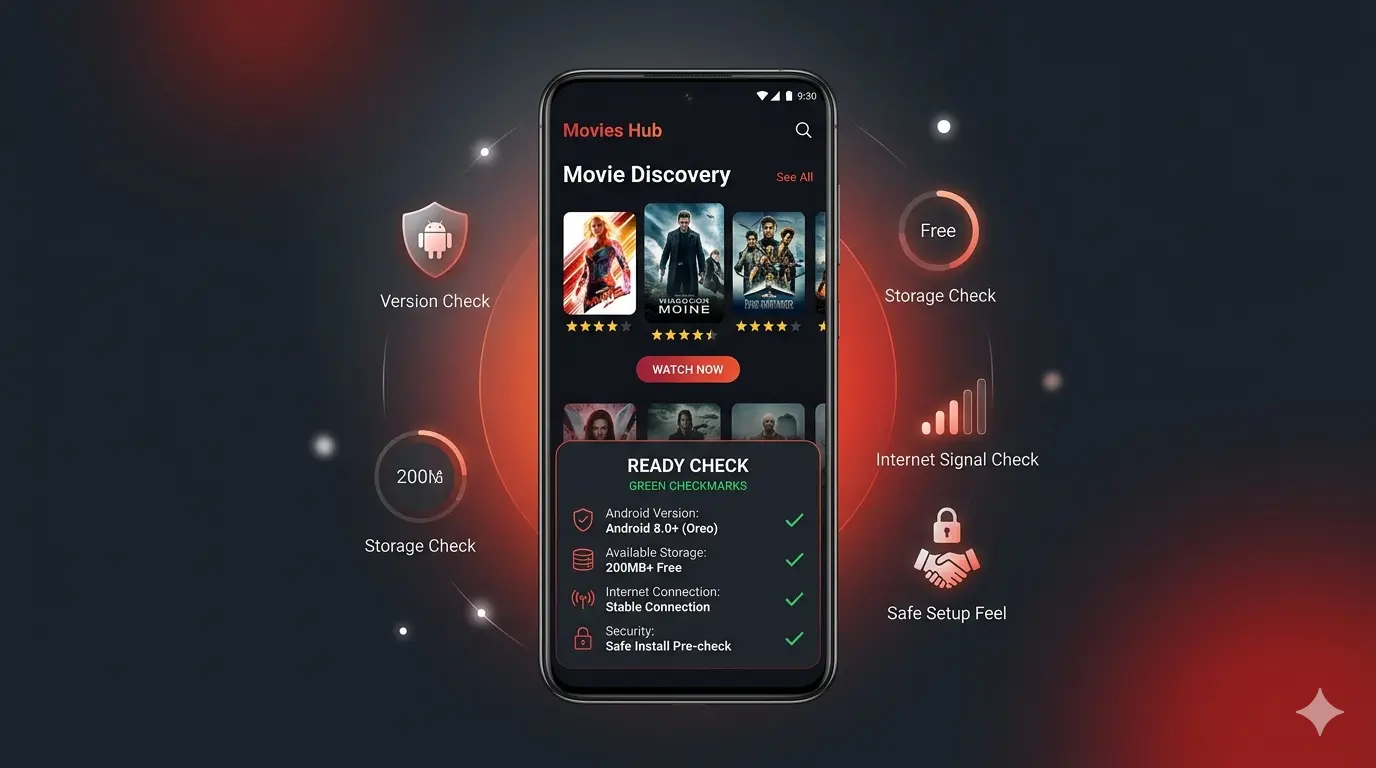
Movies Hub APK Requirements for Android
Most APK installation guides jump straight to download steps. They skip the one question that actually saves you time: does your device meet the requirements?
Getting that wrong costs you more than a few minutes. It means a failed installation, an app that crashes on launch, chronic buffering that has nothing to do with your internet, or playback that stutters through every scene because your RAM is exhausted. None of these are Movies Hub APK problems. They are device readiness problems.
This guide covers every requirement your Android device needs to install and run Movies Hub APK v2.10.0 properly in 2026 — Android version compatibility, minimum and recommended RAM, storage needs at every stage, internet speeds for each streaming quality, processor considerations, OEM-specific differences on Samsung, Pixel, and Xiaomi, and what to do when your device falls short of the ideal setup.
Read it once before installation and you will avoid problems that frustrate the majority of users who skip this step.
Movies Hub APK v2.10.0: Quick Requirements Reference
Before going deep, here is the complete specification table for Movies Hub APK version 2.10.0, released April 2, 2026.
| Requirement | Minimum | Recommended |
|---|---|---|
| APK Version | v2.10.0 | v2.10.0 (latest) |
| File Size | 85.1 MB | — |
| Android Version | Android 5.0 (Lollipop) | Android 10 or above |
| RAM | 2 GB | 4 GB or above |
| Internal Storage (install) | 200 MB free | 500 MB+ free |
| Internet Speed (SD) | 3–5 Mbps | — |
| Internet Speed (HD 1080p) | 5–10 Mbps | — |
| Internet Speed (4K) | 25 Mbps | 35 Mbps+ |
| Processor | Quad-core 1.4 GHz | Octa-core 2.0 GHz+ |
| Permissions Required | Storage, Internet | — |
| Google Play Protect | Compatible | Keep enabled |
Keep this table open while preparing your device. Every section below expands on what these numbers mean in practice.
Android Version Compatibility: What Actually Works in 2026
Movies Hub APK v2.10.0 supports Android 5.0 through Android 16. That is a wide range, but support and smooth performance are not the same thing.
Here is what you should realistically expect at each major Android level:
Android 5.0 – 7.0 (Minimum Support, Not Recommended)
The app will install on Android 5.0 through 7.0, but this is the floor — not a comfortable place to operate. Devices running these versions are typically five to eight years old, carry 1–2 GB of RAM by default, and use processors that predate modern video codec support. You may install successfully and find that HD playback stutters, content takes a long time to load, or the app crashes under memory pressure.
If your device is stuck on Android 7.0 and below and cannot update further, Movies Hub APK will technically work, but expect a degraded experience.
Android 8.0 – 9.0 (Functional, Limited)
Android 8.0 Oreo introduced the per-app sideloading permission system that is now standard across all modern versions. Devices in this range typically carry 2–3 GB of RAM and mid-range processors that handle 720p to 1080p streaming adequately.
Performance is acceptable on these devices for standard definition and HD content. 4K playback may be inconsistent depending on the specific chipset.
Android 10 – 12 (Good Compatibility Range)
This is the practical sweet spot for Movies Hub APK in 2026. Android 10 through 12 devices cover a wide range of mid-range and flagship hardware released between 2019 and 2022. Most of these devices carry 4–8 GB of RAM, run Snapdragon 600–800 series or equivalent processors, and handle 1080p streaming without issues.
The sideloading process on Android 10–12 is straightforward, storage management is efficient, and background app handling is reliable enough that Movies Hub APK stays loaded between uses without constant reloading.
Android 13 – 14 (Current Standard, Fully Compatible)
Android 13 and 14 are the most widely used versions in 2026, running on the majority of Samsung, Pixel, and Xiaomi devices released in the last three years. Movies Hub APK v2.10.0 is optimized for this range.
Android 14 specifically introduced tighter per-app installation controls and enhanced Play Protect scanning during APK installation. This adds one or two extra confirmation steps compared to older versions, but does not prevent installation. The correct permission path on Android 14 is Settings → Apps → Special app access → Install unknown apps — the old global “Unknown Sources” toggle from Android 7 no longer applies.
Android 14 also requires a minimum of 2 GB RAM to run most apps, with Google recommending 4 GB for normal usage and 6–8 GB for optimal multitasking performance. If your device runs Android 14 with 2 GB RAM, expect Movies Hub APK to function but to compete aggressively with other background processes.
Android 15 (Fully Compatible, Samsung One UI 7 Notes)
Movies Hub APK v2.10.0 is compatible with Android 15. The installation process mirrors Android 14 with one notable addition: Google Play Protect in Android 15 runs a more thorough scan before allowing sideloaded APK installation to complete, adding a few extra seconds to the process and occasionally displaying a warning screen.
If you are on Samsung One UI 7 (which is based on Android 15), note two things. First, Samsung’s Android 15 update requires a minimum of 32 GB of device storage, which means you are more likely to have adequate space available. Second, the Install Unknown Apps permission on One UI 7 sits at Settings → Security and privacy → Install unknown apps rather than the stock Android path.
Android 16 (Compatible, Stricter Sideloading Rules)
Android 16 is the most recent version and is currently rolling out to Pixel devices and select Samsung Galaxy models. Movies Hub APK installs on Android 16, but three important changes affect the process.
First, Android 16 blocks APK installation to external storage including microSD cards. All APK files must install to internal storage. If your internal storage is full, moving files to the SD card is not sufficient — you need to free space inside internal storage itself.
Second, enhanced Play Protect scanning runs before installation completes. Expect a longer wait on the Package Installer screen and potentially a warning asking you to confirm installation. This is normal behavior for any sideloaded APK, not an indication that the file is unsafe.
Third, the per-app Install Unknown Apps permission system continues from Android 8.0 onward, with no global toggle available.
How to Check Your Android Version
Settings → About Phone → Android Version
On Samsung devices, this may be under Settings → About Phone → Software Information → Android Version.
On Xiaomi and Redmi devices running HyperOS, the path is Settings → About Phone → OS Version.
Storage Requirements: More Than Just the APK File
The 85.1 MB file size of Movies Hub APK v2.10.0 is what you download. It is not what installation actually costs your storage.
Android unpacks an APK during installation, creating temporary files, writing app data directories, and extracting resources to internal storage. Depending on your device, the actual footprint after installation runs between 150–200 MB of internal storage.
Beyond installation, Movies Hub APK generates additional storage use over time:
App cache accumulates as you browse content and stream media. The app caches thumbnails, recently viewed content metadata, and stream buffer data. Depending on how frequently you use the app, this cache can grow to 300–500 MB over several weeks of regular use.
Downloaded content (if you use offline download features) uses as much space as the content itself. A typical 1080p movie download ranges from 1.5 GB to 4 GB depending on quality settings and encoding.
Practical Storage Recommendations by Use Case
| Use Case | Minimum Free Internal Storage |
|---|---|
| Installation only | 200 MB |
| Regular streaming (no downloads) | 500 MB |
| Occasional offline downloads | 5–10 GB |
| Frequent downloads, large library | 15 GB+ |
Samsung One UI 7 Storage Note
Samsung’s One UI 7 update (Android 15) itself requires approximately 32 GB of device storage to install. If you recently updated a Samsung device to One UI 7, check that your APK installation does not compete with this increased OS footprint. Settings → Battery and device care → Storage gives a clear breakdown on Samsung devices.
How to Free Storage on Android 14 and 15
Go to Settings → Storage and use Android’s built-in cleanup tool to identify large files, duplicate photos, and apps you no longer use. On Samsung devices, Settings → Battery and device care → Storage provides a more detailed breakdown with one-tap cleanup options. On Xiaomi HyperOS, Settings → Phone storage serves the same purpose.
Clearing cached data for individual apps is another effective method: Settings → Apps → [App name] → Storage → Clear Cache. This removes temporary data without deleting personal content.
RAM Requirements: The Real Performance Driver
RAM determines how smoothly Movies Hub APK runs alongside your other apps, and it is the single biggest factor behind crash rates and reload frequency.
2 GB RAM — Minimum Functional
At 2 GB RAM, Movies Hub APK installs and streams, but you are working with very little headroom. Android’s own system processes consume approximately 800 MB to 1.2 GB on most devices, leaving 800 MB to 1.2 GB for apps. Movies Hub APK needs a meaningful portion of that for active streaming.
In practice on a 2 GB device: the app runs, but switching to another app and returning to Movies Hub APK frequently triggers a full reload. Background playback is unreliable. The app may close unexpectedly if Android needs to reclaim memory for system processes.
Fix for 2 GB RAM devices: Before launching Movies Hub APK, close all other running apps. Go to your Recent Apps screen and clear everything. This frees available RAM for a better streaming experience.
3 GB RAM — Acceptable
3 GB is a workable middle ground. You get more reliable playback and less frequent app reloads when multitasking, but you will still notice limitations during extended use or on devices where the OS itself consumes significant RAM (Samsung One UI 7, for example, idles at 3–4 GB RAM usage on some devices, per XDA user reports from 2025 testing).
4 GB RAM — Recommended Minimum for Comfortable Use
At 4 GB RAM, Movies Hub APK runs without meaningful memory pressure for most users. You can switch between the app and other applications without triggering reloads. Background processes do not compete aggressively with streaming. This is the practical recommended minimum for a reliable daily experience in 2026.
Google recommends 4 GB as the standard for normal Android usage, with 6–8 GB for devices targeting optimal performance across multitasking scenarios.
6 GB RAM and Above — Optimal
At 6 GB RAM and above, you are in the range where Movies Hub APK — and everything else on your device — simply runs without thinking about resource limits. Simultaneous streaming, background downloads, and regular multitasking all coexist without any degradation.
If your device carries 6 GB or more RAM, you can rule out RAM as a factor in any performance issues you experience with the app.
Processor Requirements: What Actually Matters for Video Playback
The processor handles video decoding — converting the compressed stream data into the frames you actually see. This matters significantly for higher quality streams.
Codec Support: The Technical Layer Users Miss
Modern streaming apps use video codecs including H.264 (AVC), H.265 (HEVC), VP9, and increasingly AV1 in 2026 for maximum compression efficiency. Hardware decoding of these codecs — where the chipset handles decoding rather than burdening the CPU — dramatically reduces battery drain and prevents overheating during extended sessions.
Devices released after 2019 running Snapdragon 600 series or above, Exynos 850 or above, MediaTek Helio G series, or equivalent Unisoc and Kirin chipsets generally support hardware decoding for H.264 and H.265. AV1 hardware decoding is primarily limited to flagship-tier chipsets from 2021 onward.
If your device is an entry-level model released before 2018 with a basic quad-core Cortex-A53 processor and no hardware HEVC support, you may find that HD streams cause device heating and battery drain even when the app itself loads fine. This is software decoding doing extra work.
Practical Processor Expectations by Tier
Entry-level (pre-2019, Cortex-A53 based): Handles SD and 720p streaming. HD may cause heating. 4K not recommended.
Mid-range (2019–2021, Snapdragon 6xx, Exynos 850, Helio G85): Handles 1080p comfortably. 4K possible but may drop frames on sustained playback.
Mid-range (2022–2024, Snapdragon 7xx, Exynos 1280/1380, Helio G99): Handles 1080p excellently. 4K streaming is reliable on most titles.
Flagship (Snapdragon 8 Gen series, Exynos 2xxx, Dimensity 9000+): Full 4K playback without limitation. AV1 hardware decoding supported.
Internet Speed Requirements for Every Streaming Quality
Your internet connection determines what streaming quality you can reliably use. The numbers below are based on 2026 streaming bandwidth standards, consistent with what major platforms and independent speed testing authorities report.
Standard Definition (SD — 480p)
Minimum: 3 Mbps
Recommended: 5 Mbps
SD streaming is sustainable on mobile data connections in areas with moderate signal strength. It is the right choice when you are on a metered data plan or in a location where signal is inconsistent.
High Definition (HD — 720p)
Minimum: 5 Mbps
Recommended: 7–8 Mbps
720p is the comfortable default for most mobile streaming situations. It delivers clear, watchable picture quality on smartphone screens up to 6.7 inches without excessive data usage.
Full HD (1080p)
Minimum: 8–10 Mbps
Recommended: 10–15 Mbps
1080p is where most users with a stable home Wi-Fi connection should default. It provides the sharpest picture quality on standard smartphone and tablet screens. On screens over 10 inches, the difference between 720p and 1080p is immediately visible.
4K Ultra HD
Minimum: 25 Mbps
Recommended: 35 Mbps+
4K streaming has the most demanding requirements. At 25 Mbps, a single 4K stream runs without buffering if your connection is stable and consistent. If other devices on your network are also active, or if your ISP connection varies during peak hours, 35 Mbps or above gives you the headroom needed for uninterrupted playback.
Note that 4K playback on a smartphone screen under 7 inches provides minimal visible benefit over 1080p at normal viewing distances. The 4K setting is most useful when screen mirroring or casting to a television.
Wi-Fi vs. Mobile Data
For HD and 4K content, a stable Wi-Fi connection is strongly preferred over mobile data. Even if your mobile data plan technically delivers sufficient speeds, mobile connections are more susceptible to latency spikes, signal fluctuations, and ISP throttling of video streaming traffic — all of which cause buffering even when the raw speed test numbers look adequate.
If you must stream over mobile data: set quality to 720p or 1080p maximum and use the app’s download feature for content you plan to watch on a longer journey.
How to Test Your Connection Before Streaming
Run a speed test using Fast.com or Speedtest by Ookla on the same device and same network you plan to stream on. Do not run the test immediately after a router restart — wait five minutes for the connection to stabilize, then test. The download speed result is what matters for streaming.
If your result is below the minimum for your desired quality, either lower the stream quality setting inside the app or troubleshoot your connection before streaming.
Device-Specific Requirements: Samsung, Pixel, and Xiaomi
The three most common Android device families in 2026 each have specific characteristics that affect how Movies Hub APK runs.
Samsung Devices (One UI 6 / One UI 7 / One UI 8)
Samsung’s One UI adds a layer on top of Android that consumes additional RAM compared to stock Android. On One UI 7 (Android 15) devices, system RAM consumption at idle ranges from 2.8 GB to 4 GB depending on enabled features, background Samsung services, and device model.
This means the effective RAM available for apps is lower on Samsung than on equivalent Pixel or Xiaomi devices. A Samsung device with 4 GB RAM may behave more like a 2–3 GB stock Android device in terms of available application memory.
Recommendation for Samsung users: 6 GB RAM is the practical minimum for a smooth Movies Hub APK experience on One UI 7. At 4 GB RAM on One UI 7, close all background apps before launching the app.
Install Unknown Apps path on Samsung:
Settings → Security and privacy → Install unknown apps
Samsung also applies its own security layer (Samsung Knox) on top of Android’s Play Protect. If Movies Hub APK triggers a Knox warning during installation, this is a security notification, not a block. You can proceed by reviewing the warning and confirming installation.
Google Pixel Devices (Stock Android)
Pixel devices running stock Android have the most efficient RAM management of any major Android brand. Google’s memory management on Pixel is consistently ranked among the best by independent benchmarking. A Pixel device with 4 GB RAM genuinely delivers more available memory to apps than a comparable Samsung with 4 GB RAM.
Install Unknown Apps path on Pixel:
Settings → Apps → Special app access → Install unknown apps
Pixel devices also receive Android updates earliest. If you are on a Pixel and already running Android 16, refer to the Android 16 compatibility section above — particularly the internal storage requirement for APK sideloading.
Xiaomi / Redmi Devices (MIUI / HyperOS)
Xiaomi’s HyperOS (successor to MIUI) applies aggressive background app management by default. This can cause Movies Hub APK to be terminated in the background more frequently than on other devices, leading to content reloads when you return to the app after using another application.
Fix for Xiaomi HyperOS users: Go to Settings → Apps → Movies Hub → Battery saver and set it to No restrictions. Also go to Recent Apps screen, long-press Movies Hub APK, and lock it to prevent automatic termination.
Install Unknown Apps path on Xiaomi HyperOS:
Settings → Privacy protection → Special permissions → Install unknown apps
Additionally, Xiaomi’s HyperOS applies its own security scanning to sideloaded APKs through the HyperOS Security app. You may see a Xiaomi-specific security check during installation separate from Google Play Protect. Both are expected and can be approved to proceed.
OnePlus, Motorola, and Other Android Devices
For Android devices outside the Samsung/Pixel/Xiaomi ecosystem, the core requirements remain the same: Android 5.0 minimum, 2 GB RAM minimum, 200 MB internal storage, and a working internet connection.
The Install Unknown Apps permission is available on all Android 8.0 and above devices. The exact path varies by manufacturer UI, but searching “Install unknown apps” in your device’s Settings search bar will surface the correct menu regardless of OEM skin.
What to Do When Your Device Doesn’t Meet Requirements
Not every device in 2026 is recent hardware. If your device falls below the recommended specifications, these steps can meaningfully improve performance.
Free RAM before launching. Clear your Recent Apps screen completely before opening Movies Hub APK. On low-RAM devices this single step makes the biggest difference.
Lower streaming quality. The app’s playback settings typically allow you to choose stream quality manually. Setting the default to 480p or 720p instead of auto-quality reduces the decoding load on your processor and the bandwidth demand on your connection.
Clear the app cache regularly. Settings → Apps → Movies Hub → Storage → Clear Cache. Do this weekly on low-storage devices to prevent the cache from consuming available space.
Use a wired connection where possible. If you are streaming to a TV or larger screen via a casting device, Ethernet provides more consistent throughput than Wi-Fi and eliminates signal-related buffering.
Restart your device before extended sessions. A fresh restart clears memory leaks from other apps, reclaims RAM held by background processes, and gives Movies Hub APK a cleaner environment to run in.
Check for Android system updates. Even on older devices, security patches and system updates sometimes include memory management improvements that benefit app performance. Settings → System → System Update (or equivalent path on your device).
Common Requirement-Related Errors and Their Root Causes
Understanding why specific errors happen makes troubleshooting faster.
“App not installed” — Most often caused by insufficient internal storage or a signature conflict with a previously installed version. Check both before re-downloading the APK.
“Parsing error” — The APK file is incomplete or corrupted. Verify the file size is 85.1 MB. If it is smaller, the download did not complete successfully. Delete and re-download.
App installs but crashes on first launch — Usually a RAM issue on low-memory devices, or a compatibility problem between the APK version and your Android version. Close all background apps and relaunch.
Constant buffering despite adequate internet speed — Check available RAM first. On low-RAM devices, Movies Hub APK may be fighting for resources with background processes while streaming. Also confirm your actual speed with a fresh test rather than relying on your plan’s advertised speed.
App closes in the background — On Xiaomi HyperOS and some Samsung devices, aggressive battery optimization terminates background apps. Disable battery optimization for Movies Hub APK specifically: Settings → Apps → Movies Hub → Battery → Unrestricted.
Installation blocked on Android 16 — Attempting to install to microSD card storage. Android 16 requires internal storage for sideloaded APKs. Move the APK file to internal storage and retry.
Verifying Your Device Is Ready: Pre-Installation Checklist
Work through this list before starting the installation:
✅ Android version confirmed (5.0 minimum, 10+ recommended)
✅ Internal storage has at least 200 MB free (500 MB+ preferred)
✅ APK file downloaded completely and matches 85.1 MB file size
✅ Install Unknown Apps permission enabled for your browser or file manager
✅ Conflicting older version of Movies Hub APK uninstalled if present
✅ Internet connection tested — meets minimum for your preferred streaming quality
✅ Background apps closed on low-RAM devices
✅ Device restarted within the last hour on low-spec devices
Completing this checklist takes under three minutes and prevents the majority of installation and early-use problems.
Where to Go After Installation
Once Movies Hub APK is installed and running correctly, a few follow-up resources from this cluster are worth bookmarking:
If you experience installation problems not covered by the pre-installation checklist, the Movies Hub APK how-to-download and installation guide covers the full step-by-step process for Android 8 through 16, including device-specific paths for Samsung, Pixel, and Xiaomi.
If the app installs but content is not loading, streams are broken, or playback keeps stopping, these are not requirements issues — they are operational problems covered in the Movies Hub APK not working guide.
For the current version number, release notes, and changelog, see the Movies Hub APK latest version page.
If you want to understand what permissions the app requests and whether the APK is safe to install, the Movies Hub APK safety guide covers the full permission analysis and security review.
Frequently Asked Questions
What is the minimum Android version for Movies Hub APK?
Movies Hub APK v2.10.0 supports Android 5.0 (Lollipop) as the technical minimum. However, Android 10 or above is the practical recommended baseline for reliable performance, adequate RAM management, and modern sideloading permission handling.
How much RAM do I need to run Movies Hub APK?
The minimum is 2 GB RAM, but 4 GB is the recommended starting point for a smooth experience. On Samsung devices running One UI 7 (Android 15), which idles at 3–4 GB RAM usage, 6 GB RAM is the practical recommended minimum.
How much storage does Movies Hub APK take up?
The APK file is 85.1 MB. After installation, the app uses approximately 150–200 MB of internal storage. Cache and any offline downloads add to this over time. Keep at least 500 MB free for comfortable operation.
What internet speed do I need for HD streaming on Movies Hub APK?
For 720p HD streaming, 5–8 Mbps is sufficient. For full 1080p HD, 8–10 Mbps is the minimum with 15 Mbps recommended. For 4K streaming, you need at least 25 Mbps of consistent download speed.
Does Movies Hub APK work on Android 14?
Yes. Movies Hub APK v2.10.0 is fully compatible with Android 14. The installation uses the per-app Install Unknown Apps permission system at Settings → Apps → Special app access → Install unknown apps.
Does Movies Hub APK work on Android 15?
Yes. Android 15 compatibility is confirmed for Movies Hub APK v2.10.0. Samsung devices on One UI 7 (Android 15) should access the permission under Settings → Security and privacy → Install unknown apps.
Can I install Movies Hub APK on Android 16?
Yes, with one important note: Android 16 requires APK installation to internal storage only. MicroSD card installation is blocked. Ensure you have at least 200 MB of free internal storage before attempting installation.
Why does Movies Hub APK keep crashing on my phone?
Crashes are most commonly caused by insufficient available RAM. Close all background apps before launching Movies Hub APK. On Xiaomi HyperOS devices, disable battery optimization for the app. On 2 GB RAM devices, a fresh device restart before launching gives the best chance of stable operation.
Why is Movies Hub APK buffering even though my internet is fast?
Speed test results and real-world streaming throughput differ. Test your speed at the same time of day you plan to stream — ISP speeds vary significantly during peak evening hours. Also check available RAM: low memory on the device causes buffer management issues independent of connection speed.
Does Movies Hub APK work on Samsung Galaxy phones?
Yes. Movies Hub APK is compatible with Samsung Galaxy devices running Android 5.0 through One UI 8 (Android 16). Samsung users should note that One UI’s higher baseline RAM consumption means 6 GB RAM or above gives the best experience.
Does Movies Hub APK support 4K streaming?
Yes, with the right hardware and connection. Your device needs a chipset with hardware H.265 or AV1 decoding support, a display capable of rendering 4K, and at least 25 Mbps of consistent internet speed. On most smartphones under 7 inches, 1080p is visually indistinguishable from 4K at normal viewing distances.
How do I check if my Android device meets Movies Hub APK requirements?
Go to Settings → About Phone to check your Android version and device model. Check Settings → Storage for available space. Run a speed test for your internet connection. Cross-reference your device’s RAM from its original specifications or from Settings → About Phone → RAM (available on some OEM skins) against the minimums in this guide.
Final Word
Device readiness is the part of the APK experience that nobody talks about until something goes wrong.
Movies Hub APK v2.10.0 is designed to run across a wide range of Android hardware — from Android 5.0 devices with 2 GB RAM up through the latest Android 16 flagship hardware. That range means the app is accessible, but it also means your specific experience depends almost entirely on where your device sits within that spectrum.
A device on the minimum end of requirements will run the app. A device in the recommended range will run it well. Knowing the difference before you install is what separates a smooth first launch from twenty minutes of troubleshooting something that was never really a problem with the app.
For the latest version details and download link, see the Movies Hub APK download page.